

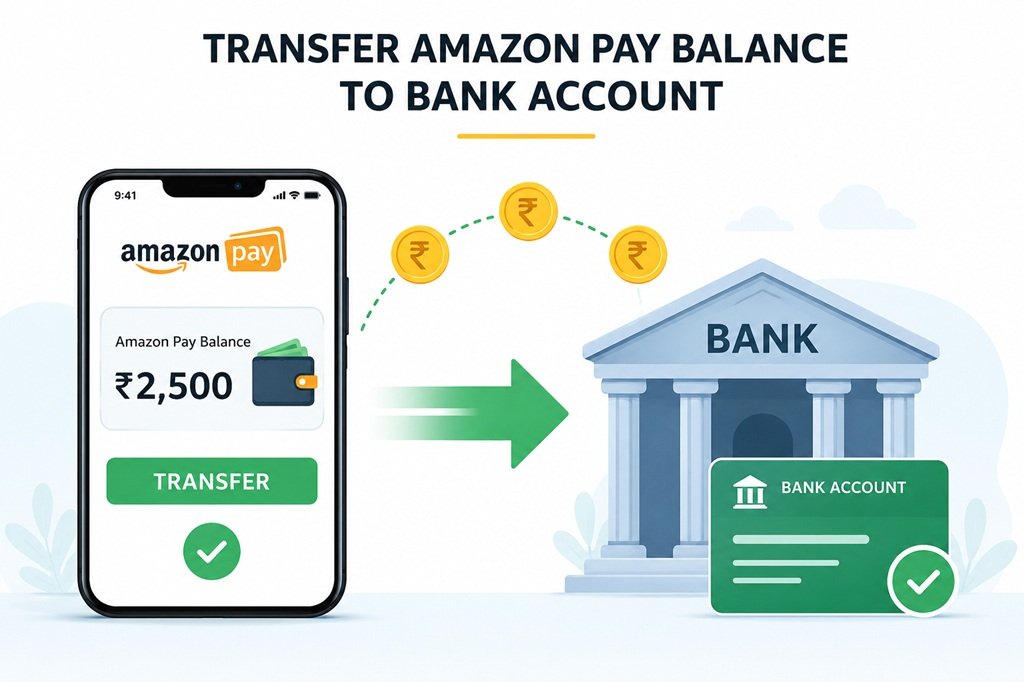
Amazon Pay balance has become one of the most convenient ways to shop, pay bills, and manage refunds without leaving the Amazon ecosystem. But what happens when you’d rather have that money in your bank account instead of sitting in your Amazon wallet? Whether you received a refund, a cashback reward, or a gift card credit, knowing how to transfer your Amazon Pay balance to your bank account can give you more flexibility with your money.
In this comprehensive guide, we’ll walk you through everything you need to know about transferring Amazon Pay balance to your bank account, including eligibility requirements, step-by-step instructions, common issues, and frequently asked questions.
What Is Amazon Pay Balance?
Amazon Pay balance (sometimes called Amazon Pay wallet) is a digital wallet built into your Amazon account. Money can land in this wallet through several channels:
- Refunds for canceled or returned orders
- Amazon gift card redemptions
- Cashback and promotional rewards
- Manual top-ups you add yourself using a debit card, credit card, or bank transfer
You can use this balance to pay for future Amazon purchases, book movie tickets, pay utility bills, or, in many cases, transfer it back out to a linked bank account. Understanding which type of balance you have matters, because not every rupee or dollar sitting in your Amazon Pay wallet is treated the same way when it comes to withdrawals.



Can You Really Transfer Amazon Pay Balance to a Bank Account?
Yes, in most regions where Amazon Pay operates as a wallet service (most notably India), Amazon allows eligible users to move their Amazon Pay balance directly to a linked bank account. However, there’s an important distinction to understand:
- Refund-based balance (money that came from a canceled order, a return, or a failed transaction) is typically the easiest to transfer to your bank account.
- Promotional or cashback balance (money credited to you as a reward, bonus, or promotional incentive) often comes with usage restrictions and may not be eligible for direct bank transfer. Amazon’s terms and conditions usually specify that such balances must be used for purchases on Amazon and cannot be withdrawn as cash.
- Gift card balance, once redeemed into your Amazon account, generally follows the same rules as regular Amazon Pay balance, but Amazon’s official policy does not guarantee a direct withdrawal option for gift card funds in every market.
Before attempting a transfer, it’s worth checking your Amazon Pay balance breakdown in the app, since Amazon typically separates “usable for all purchases” balance from “usable for Amazon purchases only” balance.
Prerequisites Before You Start
To successfully transfer your Amazon Pay balance to your bank account, make sure you have the following in place:
1. Completed KYC Verification
Amazon requires Know Your Customer (KYC) verification before allowing balance withdrawals to a bank account. This is a regulatory requirement designed to prevent fraud and money laundering. KYC typically involves submitting:
- A government-issued ID (Aadhaar, PAN card, passport, or similar, depending on your country)
- A selfie or photo verification in some cases
- Your bank account details
KYC verification is free and usually takes anywhere from a few minutes to a couple of business days to process, depending on document clarity and verification load.
2. A Linked and Verified Bank Account
You’ll need to add your bank account details to your Amazon account, including:
- Account holder name (must match your Amazon account name)
- Bank account number
- IFSC code (for Indian bank accounts) or the relevant routing/sort code for your region
3. Eligible Balance Type
As mentioned above, confirm that the balance you want to transfer isn’t restricted to Amazon-only purchases.
4. Updated Amazon App
It’s a good idea to use the latest version of the Amazon app, since older versions may not display all wallet features or the “Send Money” and “Bank Transfer” options correctly.
Step-by-Step Guide: How to Transfer Amazon Pay Balance to Bank Account
Follow these steps carefully to move your Amazon Pay balance into your bank account.
Step 1: Open the Amazon App and Log In
Launch the Amazon app on your smartphone and sign in with your registered Amazon account credentials. Make sure you’re logging into the correct account, especially if you use multiple Amazon accounts for personal and business purchases.
Step 2: Navigate to Amazon Pay
From the home screen, tap on the menu icon (usually three horizontal lines) or scroll down to find the “Amazon Pay” section. On many versions of the app, you can also find this under “Your Account” or within the “Quick Links” section.
Step 3: Complete KYC Verification (If You Haven’t Already)
If you haven’t completed KYC, the app will prompt you to do so before proceeding. Tap on the KYC verification option and follow the on-screen instructions to upload your identity documents. Wait for approval before moving forward, as attempting a transfer with incomplete KYC will result in an error or a blocked transaction.
Step 4: Select “Send Money”
Within the Amazon Pay section, look for the “Send Money” option. This is typically where Amazon consolidates all outgoing balance transactions, whether you’re sending money to another user or transferring to your own bank account.
Step 5: Choose “Bank Transfer” or “Withdraw Funds”
Tap on “Bank Transfer” (or “Withdraw Funds,” depending on your app version and region). This will open a form where you can either select a previously saved bank account or add a new one.
Step 6: Enter Your Bank Details
If this is your first time transferring funds, you’ll need to enter:
- Full name (as per bank records)
- Bank account number
- IFSC code or relevant bank routing information
- Bank branch name (in some cases, this auto-fills once you enter the IFSC code)
Double-check every digit before proceeding, since incorrect bank details are one of the most common reasons transfers fail or get delayed.
Step 7: Enter the Transfer Amount
Specify how much of your Amazon Pay balance you want to transfer. Some accounts have minimum and maximum transfer limits per transaction, so keep an eye on any on-screen limits displayed.
Step 8: Review and Confirm
Carefully review the transfer details, including the amount and the destination bank account. Once you’re confident everything is correct, tap “Pay Now” or “Confirm Transfer.”
Step 9: Authenticate the Transaction
Depending on your account settings, you may need to verify the transaction using an OTP (One-Time Password) sent to your registered mobile number or email, or through your Amazon account password.
Step 10: Wait for Processing
Most Amazon Pay to bank transfers are processed within a few minutes to 24 hours, though in some cases it can take up to 2-3 business days depending on your bank’s processing speed and any additional verification checks Amazon performs.
How Long Does It Take for the Money to Reflect in Your Bank Account?
Transfer times can vary based on several factors:
- Instant transfers: Some transactions process within minutes, especially for smaller amounts from verified accounts.
- Standard processing: Most transfers complete within 24 hours.
- Delayed transfers: In rare cases involving additional security checks, bank holidays, or technical issues, transfers can take up to 3-5 business days.
If your transfer hasn’t reflected in your bank account after 3-5 business days, it’s time to reach out to Amazon customer support for clarification.
Common Issues When Transferring Amazon Pay Balance and How to Fix Them
Issue 1: “Insufficient Balance” Error
This usually happens when part of your Amazon Pay balance is restricted to Amazon purchases only. Check your balance breakdown to see how much is actually eligible for bank transfer.
Issue 2: KYC Not Verified
If your KYC status shows as pending or rejected, you won’t be able to complete a bank transfer. Revisit the KYC section, ensure your documents are clear and valid, and resubmit if necessary.
Issue 3: Incorrect Bank Details
A mismatched account holder name, wrong IFSC code, or incorrect account number can cause the transaction to fail or bounce back. Always double-check these details before confirming.
Issue 4: Transaction Failed But Amount Deducted
Occasionally, a transfer may show as failed on your end, but the balance appears deducted. In most cases, Amazon automatically reverses failed transactions within a few hours to a couple of days. If the amount doesn’t return to your Amazon Pay balance, contact Amazon customer support with your transaction ID.
Issue 5: Daily or Monthly Transfer Limits
Amazon may impose limits on how much you can transfer within a single day or month, particularly for accounts with lower KYC verification tiers. If you’re hitting these limits, consider spacing out your transfers or checking if a higher KYC tier is available to you.
Tips for a Smooth Amazon Pay to Bank Transfer
- Keep your KYC updated: Renew or update your KYC documents promptly if Amazon requests it, since expired verification can block future transfers.
- Use a bank account in your own name: Transfers to third-party accounts are often restricted or flagged for additional verification.
- Avoid transferring during peak hours: While rare, high transaction volumes (such as during major sales events) can occasionally slow down processing times.
- Save your transaction ID: Always note down or screenshot your transaction reference number in case you need to follow up with customer support.
- Check for any transfer fees: While Amazon Pay typically doesn’t charge fees for standard bank transfers, it’s worth confirming this in the app before large transactions, as policies can vary by region and account type.
Is There a Transfer Limit for Amazon Pay Balance?
Yes, Amazon typically enforces both per-transaction and cumulative limits on bank transfers, especially for accounts that haven’t completed full KYC verification. These limits exist primarily for regulatory compliance and fraud prevention. Fully KYC-verified accounts generally enjoy higher limits, so completing this step thoroughly is worthwhile if you plan to transfer larger sums regularly.
Alternatives If You Can’t Transfer Amazon Pay Balance Directly
If your balance is restricted from direct bank transfer (for example, promotional or cashback credits), you still have a few options:
- Use the balance for Amazon purchases: Buy something you need on Amazon using the restricted balance, effectively saving that amount from your regular funds.
- Contact Amazon customer support: In some cases, representatives can offer guidance on balance types and whether an exception applies to your account.
- Wait for balance conversion: Occasionally, promotional balances convert to standard, transferable balances after a certain holding period, though this isn’t guaranteed and varies by promotion terms.
Frequently Asked Questions
Is it safe to transfer Amazon Pay balance to my bank account?
Yes, as long as you’re using the official Amazon app and entering your own verified bank details, the process is secure and backed by Amazon’s standard transaction encryption and authentication protocols.
Do I need to pay any fees for the transfer?
In most cases, standard bank transfers from Amazon Pay balance are free of charge, but it’s always a good idea to check current terms within the app, as fee structures can be updated by Amazon.
Can I transfer Amazon Pay balance to someone else’s bank account?
This depends on Amazon’s regional policies. In many cases, transfers are restricted to bank accounts registered under your own name for security reasons.
What should I do if my KYC verification is rejected?
Check the reason provided by Amazon (usually related to document clarity or mismatched information) and resubmit with corrected documents.
Can I cancel a transfer once it’s initiated?
Once confirmed, most transfers cannot be canceled, so always double-check your details before hitting “Confirm.”
Final Thoughts
Transferring your Amazon Pay balance to your bank account is a straightforward process once you’ve completed KYC verification and linked a valid bank account. By following the step-by-step instructions above and keeping an eye on common pitfalls like restricted balance types or incorrect bank details, you can move your funds quickly and securely.
Whether you’re cashing out a refund, redeeming a gift card, or simply prefer having your money in your bank rather than your Amazon wallet, this guide should help you complete the transfer with confidence. Always refer to Amazon’s official help section for the most current policies in your region, as terms and features can change over time.

